How to Import Hermes Agents into nisteriaAgent
Import your Hermes Agent profiles into nisteriaAgent. Choose what to bring over, review instructions, memories and skills, and check your agents after import.
You can move your Hermes Agent setup into nisteriaAgent without rebuilding every agent from scratch. Each Hermes profile becomes an nisteriaAgent agent, with its own instructions, saved memories and custom skills where available.
nisteriaAgent shows you what it found before you import. You choose the profiles to bring over, check which items will move and allow any optional items you want to include. Your original Hermes profiles stay where they are.
Before you start
Update nisteriaAgent and decide where your imported agents should live. For the folder method below, use the nisteriaAgent desktop app on the same computer as Hermes and select that computer as your destination.
If Hermes is on another computer, or you use nisteriaAgent in the browser or on a joined server, use the ZIP export method later in this guide.
1. Open Import in nisteriaAgent
Open Server settings → Import, then choose Hermes Agent.
Choose the option that matches where Hermes runs and how you want to prepare the import.
2. Choose an import option
| Option in nisteriaAgent | When to use it |
|---|---|
| Read this computer | Hermes is on the same computer as the nisteriaAgent desktop app. No ZIP is needed. |
| Install with a command | Add the export skill in Hermes with one command, then import its ZIP into nisteriaAgent. |
| Set it up yourself | Save the supplied skill file in Hermes yourself, then use the same ZIP export flow. |
For the two ZIP options, prepare the export on the computer where Hermes runs. You can then import it through the nisteriaAgent desktop app, the browser or a joined server.
Option 1: Read this computer
Select Read the Hermes folder. nisteriaAgent reads the profiles it finds without changing the Hermes folder.

The usual folder is ~/.hermes. If nisteriaAgent cannot find your profiles, use Choose the Hermes folder and select the folder your installation uses. On the profile preview, Choose another folder lets you change it.
You do not need to make a ZIP for this method. nisteriaAgent takes you straight to the profiles it found.
Once the folder has been read, continue to step 3 to review the profiles.
Option 2: Install with a command
This option adds the nisteriaAgent export skill to Hermes. It is useful when Hermes runs on another computer, or when you want to import through the browser or into a joined nisteriaAgent server.
In Server settings → Import → Hermes Agent, choose Install with a command. Copy the command into a Hermes chat:
/skills install nisteria/nisteriaagent/resources/agent-import/hermes-agentHermes scans the skill before installing it. If you prefer the terminal, use:
hermes skills install nisteria/nisteriaagent/resources/agent-import/hermes-agentAfter installing the skill, follow the ZIP export steps below.
Option 3: Set it up yourself
Use this option if you prefer to add the export skill as a file. On the Hermes Agent import page in nisteriaAgent, choose Set it up yourself.
Select Save file… to save the supplied SKILL.md, or use Copy and paste its complete contents into a file with that name.
Save it at ~/.hermes/skills/nisteriaagent-export/SKILL.md. If your Hermes installation uses a different home folder, put it in that folder under skills/nisteriaagent-export/SKILL.md. Create the nisteriaagent-export folder if needed.
Start a new Hermes chat so it can find the skill. The export leaves this helper skill out of the ZIP. You do not need to run the installation command as well.
Export a ZIP for options 2 and 3
Both Install with a command and Set it up yourself continue with the same export step. In Hermes, send:
/nisteriaagent-exportChoose the profiles you want to export and wait for the completed ZIP in Downloads. Its name will look like nisteriaagent-export-hermes-2026-10-28.zip.
This export can carry your persona, saved memories, custom skills and supported recurring jobs. It leaves out credentials, chat sessions, bundled skills and MCP server settings. The ZIP export skill also leaves out one-time jobs; read its summary of skipped items.
Return to nisteriaAgent, select Choose export file, and choose the completed ZIP without unzipping it. nisteriaAgent opens a preview. Continue to step 3 to review it before importing.
3. Review what will move
You can review the import before nisteriaAgent adds the agents. The preview depends on whether you read the Hermes folder or selected a ZIP.
If you read the Hermes folder
Use the checkbox beside each profile to choose which agents you want in nisteriaAgent. You can start with one profile and bring over the others later. The default profile appears as Hermes; named profiles appear separately.
Expand the item count beside a profile, such as 4 items, to see its contents. The labels explain what will happen:
- Imports means the item will come with the selected profile.
- Allow means the item needs a separate choice before it can be included. For example, a custom skill that runs code needs your approval.
- Not imported means the item will stay behind. Read the reason shown under it.
In the example below, SOUL.md will become the agent's instructions. The built-in Hermes skills, secrets and past sessions are marked Not imported. Your list may contain different items and counts.
If a profile has saved memories, nisteriaAgent can bring over entries from MEMORY.md and USER.md. Custom skills can come too; skills bundled with Hermes are left out. If the profile only has Hermes's starting persona text, the new agent keeps nisteriaAgent's starting instructions.
Supported scheduled jobs become nisteriaAgent routines. Check their schedules and enabled state before importing: enabled routines can remain enabled. Jobs that only run a script and unsupported schedules are left out with a reason.
If the list includes MCP servers, these are connections to tools and services. You can allow supported connection settings to be added. They arrive turned off, with sensitive connection values cleared, so you can check them before use.
If you selected a ZIP
Select the agents you want in the ZIP preview. Check the counts of included memories, skills, routines and files, and read any warnings about items that will not move.
A ZIP import creates separate agents. If a name already exists, nisteriaAgent asks you to confirm the duplicate when you start the import. It does not offer the folder method's linked-profile update.
4. Import the selected agents
Check your selected agents and any items you allowed, then select the Import button. Its label shows your selection, such as Import 1 agent.
When the process finishes, nisteriaAgent shows Import finished and lists the imported agents. Read any warnings or Not imported results, then open an agent from the list or select Done.
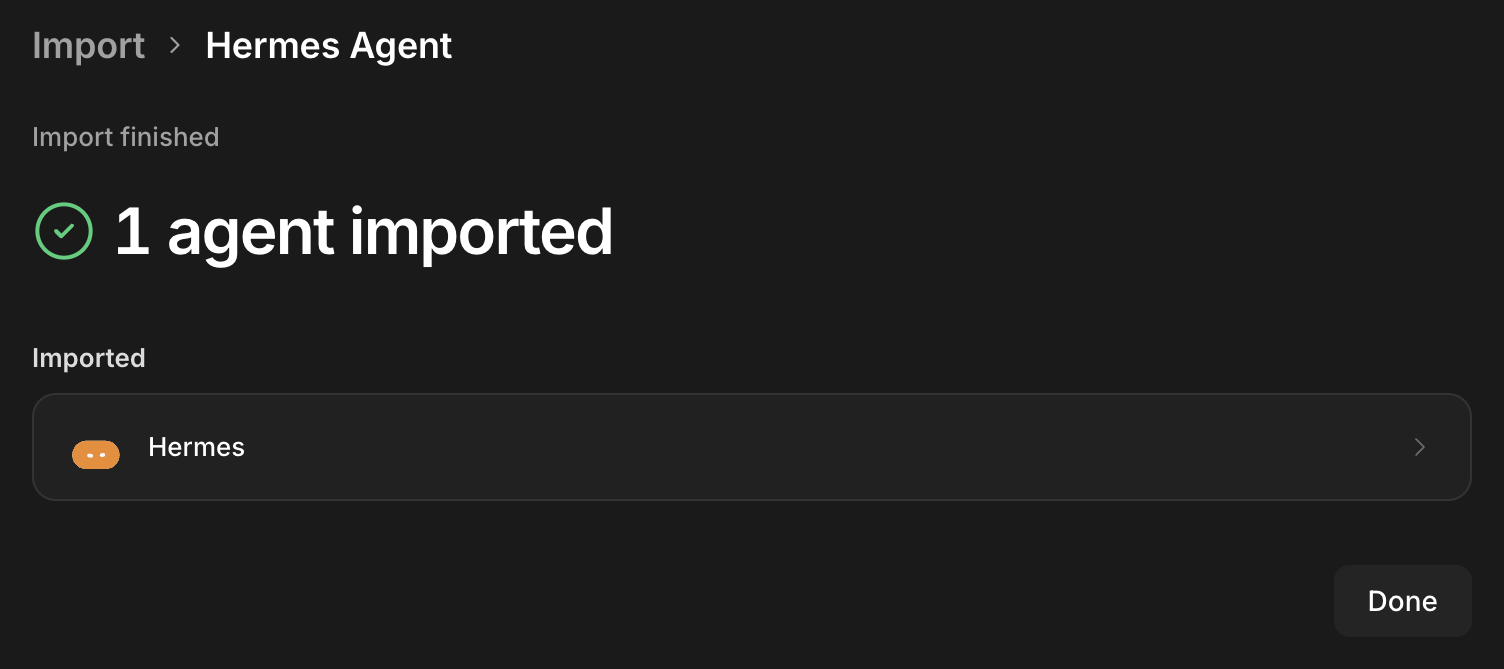
If you read the same Hermes folder again later, nisteriaAgent recognizes profiles it imported before. Update it updates the linked agent while keeping its nisteriaAgent chats. Leave it keeps that agent as it is.
5. Check the agent before its first task
Open the imported agent and check its instructions, memories, skills and routines. Choose the provider and model you want it to use in nisteriaAgent, then complete any sign-in it needs.
If a custom persona was too long for the instructions field, folder import saves the full version in imported/hermes/SOUL.md and leaves a shorter instruction pointing to it.
If you allowed MCP settings, check them in nisteriaAgent in Marketplace, Apps, supply any required values and enable the connection when ready. Messaging connections and Hermes terminal backends also need to be set up for the way you work in nisteriaAgent.
Project documents and a complete working directory are not part of the standard Hermes profile import. Bring any files your agent needs separately.
A useful first request is:
Check your instructions, saved memories and installed skills. Tell me which tools and files are available and which connections still need setting up. Do not send messages, publish content or change project files.
What stays in Hermes?
Full chat history stays in Hermes. nisteriaAgent brings over saved memory entries, subject to its memory limits. Read any warnings to see what could not be included.
Credential files and login sessions are not transferred. Reconnect providers and services in nisteriaAgent. Also check any sensitive information you may have written into your own instructions or memories.
For the folder method, the reader leaves the source profiles unchanged. For a ZIP import into a joined server, the file goes through the host connection to the computer running that server. Check the selected destination before importing.
Frequently asked questions
Will each Hermes profile become a separate agent? Yes. Select the profiles you want on the preview screen.
Can I keep the same personality and memories? Your custom persona and saved memory entries can be brought over. A different model or set of tools can still change how the agent behaves, so start with a small task.
Will all tools work immediately? Some items need your approval or a new connection. MCP settings imported from a folder arrive turned off. Provider sign-ins, credentials and messaging connections need to be set up again.